![Hatch Logo White.png]](https://www.usehatchapp.com/hs-fs/hubfs/Logos/Hatch%20Logos/Hatch%20Logo%20White.png?height=40&name=Hatch%20Logo%20White.png)
This article covers how to remove a user from Hatch.
Note: You must have owner or manager permission to access Account Settings.
Remove User from Hatch
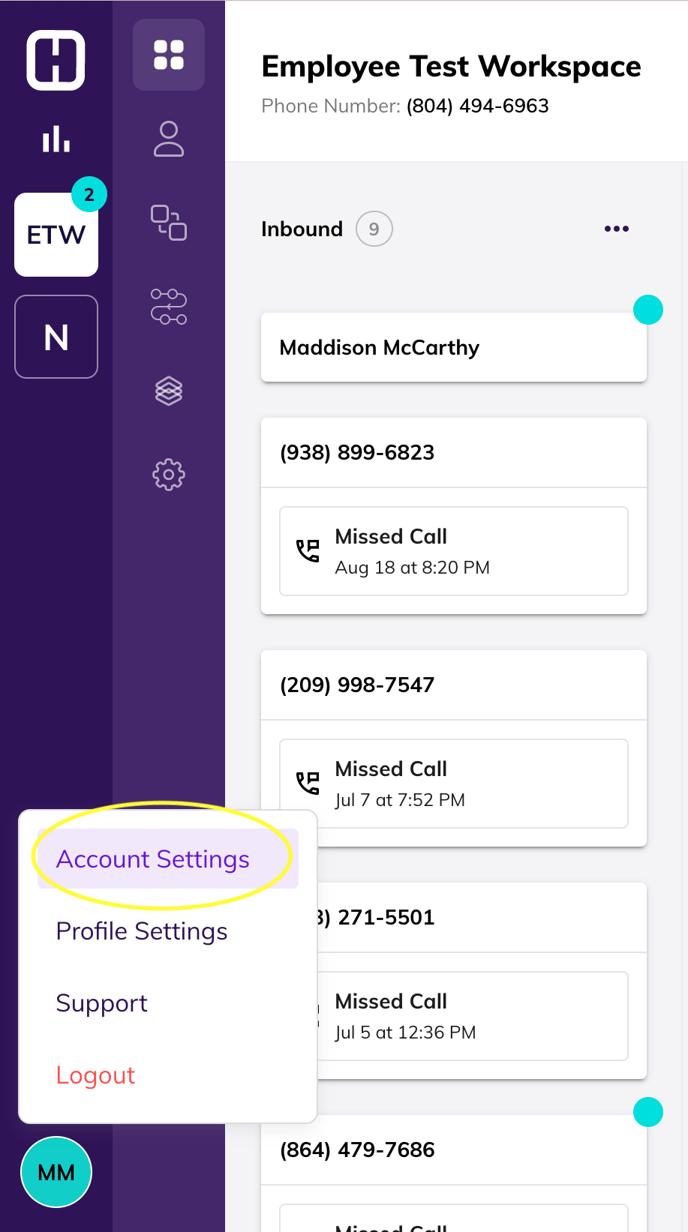
- Navigate to your Account Settings by clicking on your profile in Hatch.
- Click Account Settings.
 When you first reach Account Settings, you can see a quick overview of your account.
On the General Page, see your account name, owner email, and owner phone number, and other details.
- Click Team in Account Settings to see all your current team members.

- Next to the Member Name, click the three dots. Click Deactivate.

- Confirm that you would like to deactivate the team member. Deactivating a member will remove their access from Hatch.

Note: If you are trying to remove a member from a Workspace instead, click Edit and adjust which Workspaces the user has access to.