![Hatch Logo White.png]](https://www.usehatchapp.com/hs-fs/hubfs/Logos/Hatch%20Logos/Hatch%20Logo%20White.png?height=40&name=Hatch%20Logo%20White.png)
Hatch's Voice AI agent can book appointments and answer callers' questions about your business, but you might have calls where you'd prefer to get some human expertise. Maybe:
- When a customer requests emergency service, you'd like to forward the call to a personal number
- When a customer requests to speak to a specific employee or department, you'd like to direct that call to the relevant party
- If the Voice AI agent can't answer a question, or gets the sense a customer only wants to speak to a human, you'd prefer to get an operator involved
- Once the Voice AI agent qualifies that a caller meets some criteria, you'd like to forward them to a specific line
Of course, you'd prefer to keep the customer on the line while this happens—these situations are where live transfers come in handy!
In the Hatch Assistant playground, Voice AI subscribers can set up a live transfer using the /transfer command.
- Ensure the 'trigger' for your bot is an inbound phone call to the Hatch workspace of your choice
- In your chatbot instructions, add a line for the situation in which you'd like the Voice AI agent to transfer the call
- For example: if the caller requests emergency service
/transfer
- For example: if the caller requests emergency service
Once you add this command into your AI Agent Instructions, you'll be able to choose one of two live transfer types: to the external phone number of your choosing, or a live transfer within Hatch.
External Phone Transfer
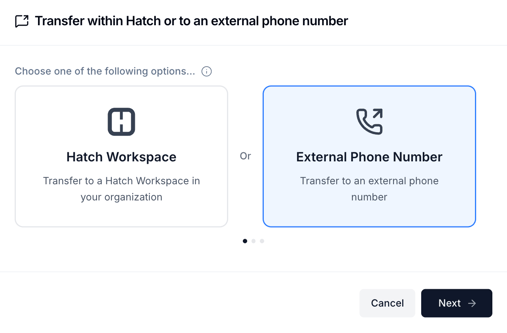
There are two things to configure in the playground for an external phone transfer:
- The phone number to which a call should be transferred
- Instructions for the AI Agent, i.e. "what should the agent say when they transfer the caller?"
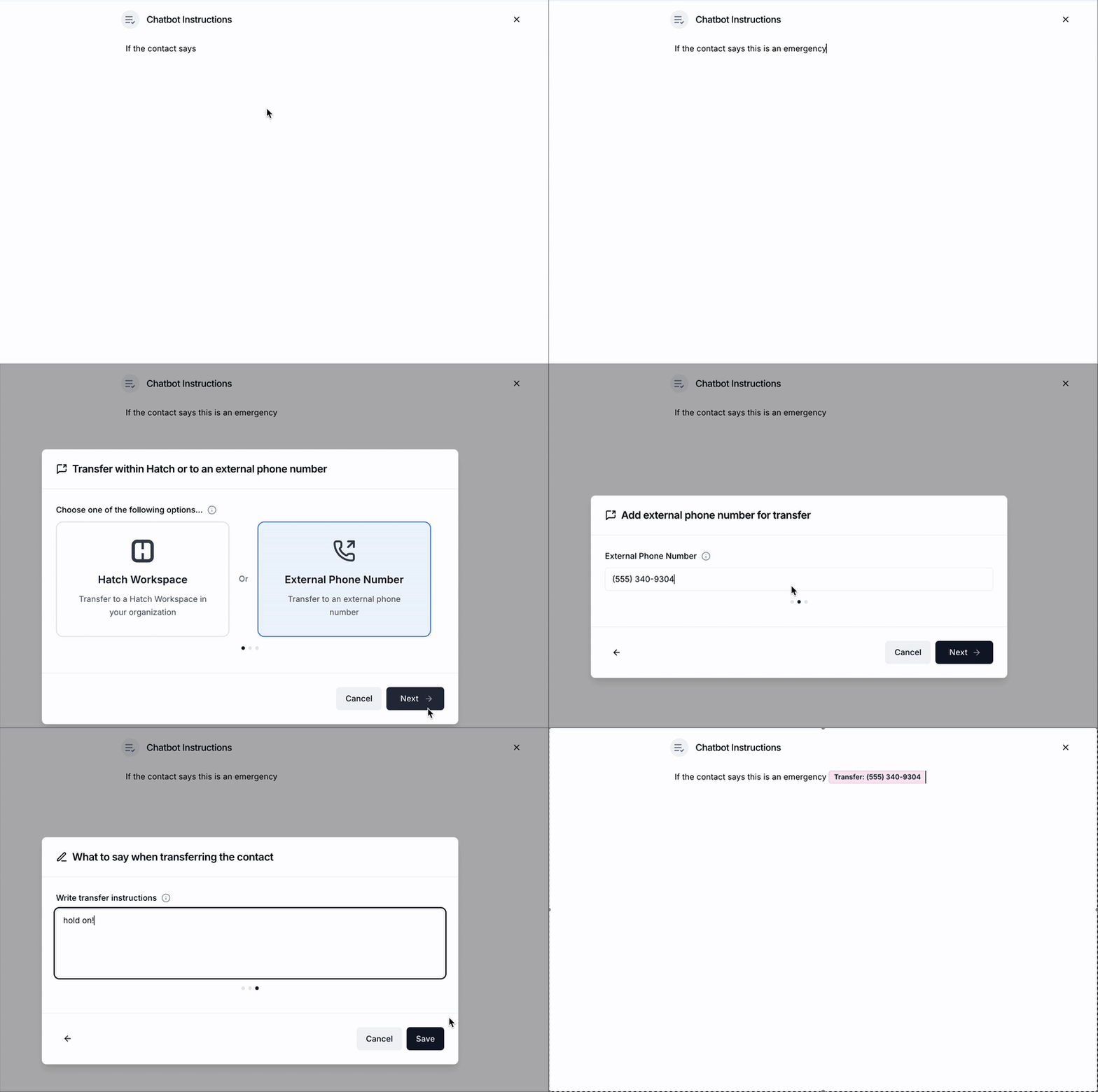
In the case of an external phone transfer, the caller is likely to be on hold for a brief period before the human user is connected to the call, so you might want the instructions to reflect that (e.g. "Please hold while I connect you to someone who can help")
Once the command is configured, a live external transfer has three steps:
- Step one: A customer calls your Hatch phone number, and triggers the
/transfercommand. The situation you've told the Voice AI to look out for and transfer the call, occurs in this first leg of the call. Whatever transfer instructions have been added for the agent occurs now—the agent will say "please hold" or similar. - Step two: The caller is put on hold, and a phone call is placed from the Hatch workspace number to the external phone number added in the playground. When this call is picked up, you'll get a summary of what occurred in the first leg of the call to prompt the transfer.
- Example: "This is a transfer from your Hatch AI assistant. Customer John Smith requested emergency service as his hot water is off. Connecting you now..."
- Step three: The transfer recipient is connected to the original caller, who has been taken off hold. With the added context of the call summary, the original caller won't need to repeat the details of their request.
That's it!
What happens if I don't pick up the call when the transfer happens?
- The transferred call behaves just like a normal inbound call to the external number, so the original caller will be connected to the voicemail box of the external phone number, or however the external phone number is configured
How will I know which of my Hatch contacts were transferred?
- All transferred conversations are saved with a disposition of 'transferred', which you can see in your reporting dashboard, and all calls to your Hatch workspace will appear at the top of the Inbox column of your salesboard.
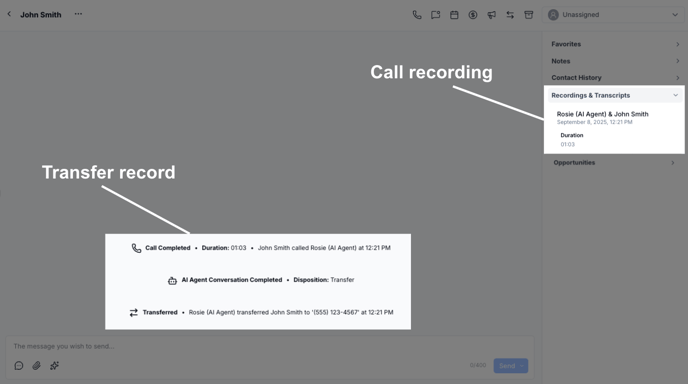
Clicking into the contact card, you can listen to a replay of the first leg of the conversation, and you'll see a record of which phone number the contact was transferred to.
Can I do this for multiple phone numbers?
- Yes! If you want to say "if the caller asks for Sally, transfer to Sally" as well as "if the caller ask for Bob, transfer to Bob", that all works as expected.
Live Transfers within Hatch
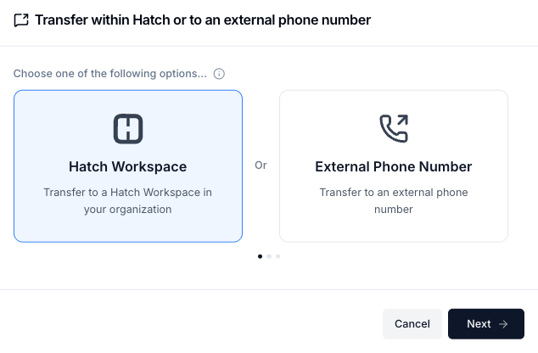
If the live transfer should occur within Hatch, two things need to be configured:
- Which Hatch workspace the call should be transferred to
- Instructions for the AI Agent, i.e. "what should the agent say when they transfer the caller?"
You can set up live transfers to any Hatch workspace that shares contacts with your Voice AI agent, including the workspace where the agent is configured! Just like an external transfer, Hatch will track that a caller called one workspace, and the contact was transferred to a second workspace on the contact card.
For a live transfer within Hatch, there are two steps:
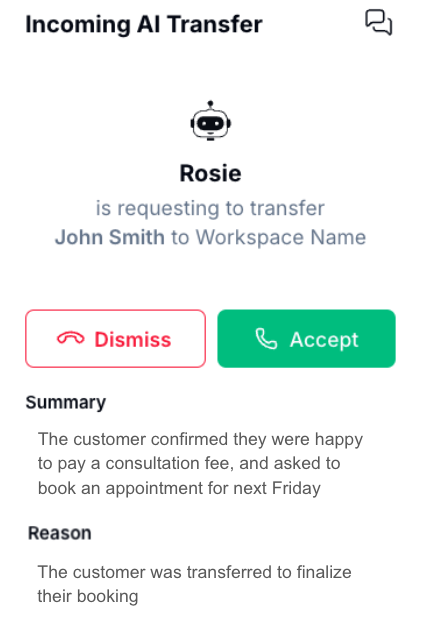 Step one: A customer calls your Hatch phone number, and triggers the
 /transfercommand. The situation you've told the Voice AI to look out for and transfer the call, occurs in this first leg of the call. Whatever transfer instructions have been added for the agent occurs now—the agent will say "I'll transfer you now" or similar.- Step two: An inbound call notification appears in whichever Hatch workspace has been designated as the one to receive the transfer. You'll see a short summary of what happened on the first leg of the call, and can pick up the call to start speaking to the contact immediately.
What happens if no one picks up the transfer?
- The customer will be prompted to leave a voicemail to your Hatch number, the call behaves just like a normal inbound call
What if I have call forwarding set up for the workspace in question?
- The transfer will respect call forwarding preferences within Hatch! So the forwarded call will be forwarded onto the number specified (with the caller's caller ID shown), but there will be no summary either read by the bot nor shown on a modal.
How will I know which contacts were transferred?
- The contact card will appear at the top of the inbox column, and will show a record of which bot transferred the contact, as well as which workspace the contact was transferred from (if relevant). A recording of the first leg of the conversation will also be available in the side bar.