![Hatch Logo White.png]](https://www.usehatchapp.com/hs-fs/hubfs/Logos/Hatch%20Logos/Hatch%20Logo%20White.png?height=40&name=Hatch%20Logo%20White.png)
Overview
Zapier is a popular low-code automation tool frequently used by individuals in the marketing industry.
While Hatch offers many native integrations and options to directly connect with many external systems, Zapier may be the easiest (or only) connection offered for some systems or lead sources.
Note: Before moving forward with a custom Zapier integration, confirm that we don’t offer a direct integration with your lead source! See the full list of our partnerships here.
Zapier Basics
A "zap" is essentially an automated workflow. A zap consists of at least two parts:
- Triggers - an event that initiates the zap
- Actions - an event that is performed by the zap
There can be steps in-between as well to create a multi-step zap: popular steps might include the Zapier formatter (to re-format inputs or outputs) or the Zapier filter (to control if a zap proceeds or what actions to take based on some input).
Popular Zapier Connections with Hatch
There are 1000+ Apps that you can connect to in the Zapier Marketplace. We’ve listed out a few that are most popular amongst our users here at Hatch.
If you want to try something different, just search on Zapier and see if they have an App available.
- Facebook Leads
- Nextdoor
- NinjaForms
- Hubspot Forms
Setup
Creating a Zapier Account
In order to set up this integration, make sure you have created a Zapier Account. Create your Zapier account by clicking here.
Note: Your expected volume of zap runs will determine if a free account may be sufficient for your needs or if you will need a paid subscription. Certain features may always require a paid subscription.
Gain Access to Our Zapier App
Our Zapier App is now public so an invite link is not required to add a Hatch action or trigger to your zap! You can find it by simply searching "Hatch" in Zapier's app marketplace or following this link to our Zapier home page.
Note: The public version of the Hatch app is our most up to date version. Older, private versions may still function but are not recommended for new zaps.
Authentication
In order to use Zapier with Hatch, you will need to obtain an API key from your Hatch representative or our support team (We recommend using our in-app support chat for quickest response). The API key will authorize access for a specified Hatch Organization.
Creating a Zap
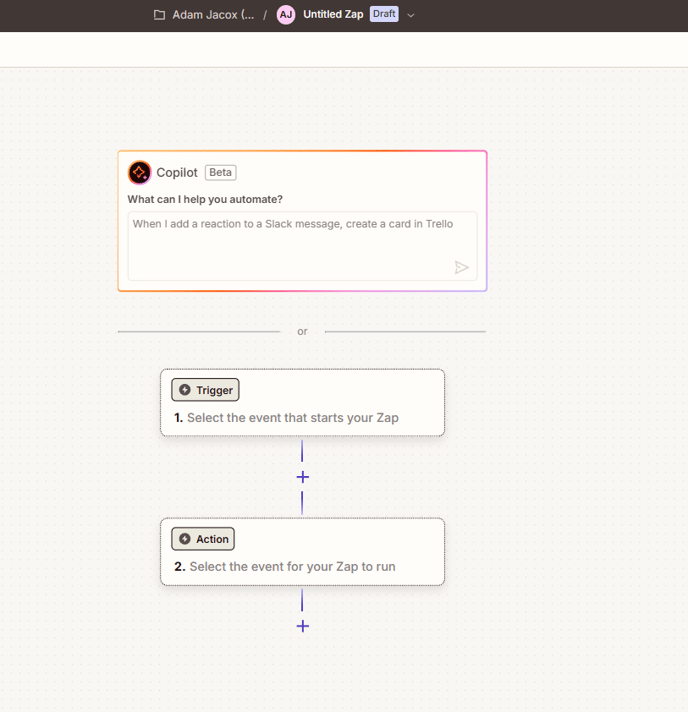
- From the Zapier Dashboard, click Create + Zap.

- This will open the zap editor where you can create a series of steps from different triggers and actions.
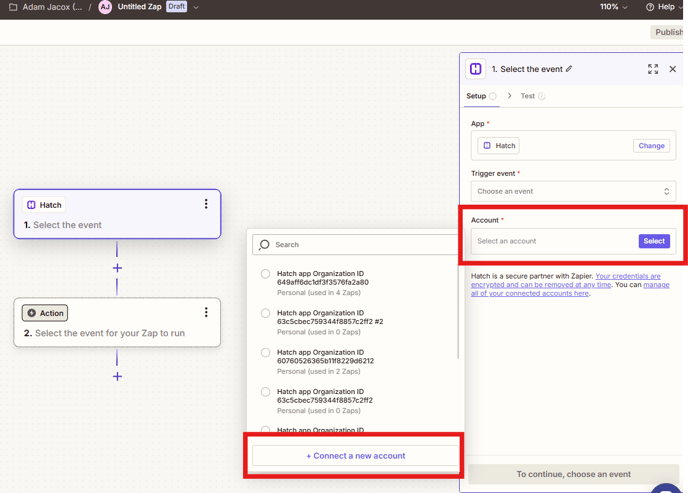
- Once a Hatch trigger or action has been selected, you will be prompted to authorize access to Hatch. If you have already authorized access to your Hatch org, you can select it from a drop-down. Otherwise, connect a new account. You may authorize connections to more than one Hatch org.
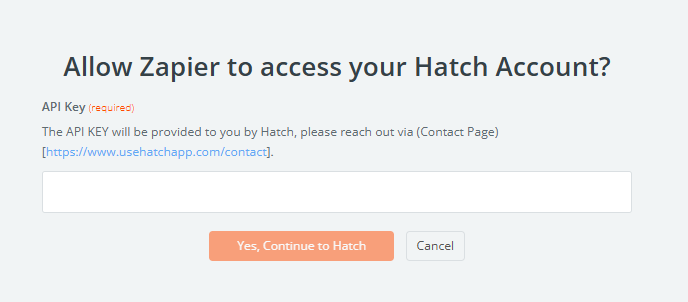
- After clicking Connect, you will receive a pop-up prompting you to enter the API key obtained from Hatch support.
- Now you're free and clear to proceed with configuring your Zap.
- Once your Zap has been tested successfully, it is ready to be published to push it live.
- If you run into any issues during testing or after publishing, check out Zapier's articles on troubleshooting your zap. Our support team is also here to help!
Now that we've covered the basics, we will dive deeper into the use cases in the following articles!
To view Part Two: Triggers and Actions, please click here.
To view Part Three: Integrate your Leads, please click here.
Frequently Asked Questions
Does Zapier cost money?
You can create 5 separate “Zaps” and run 100 “Tasks” per month for free. Essentially, you can pull 100 leads into Hatch per month before having to upgrade. See their full pricing here.
How do I set up a speed to lead campaign?
Once a lead is sent to Hatch, that lead can be launched automatically into a campaign. Check out part 3 of our help article for more specifics.
Do you offer any direct integrations?
Currently, we can directly connect with Angi Leads, Modernize, and more. Check out our full list of Partnerships on our website.
We can also connect with web forms on your website.