
Here's how to track the results of your conversations in Hatch
When a contact responds to an outbound Hatch campaign, they'll appear front and center on your salesboard. Whether a Hatch Assistant AI agent responds to the contact, or a Hatch user reaches out directly, the conversation will get assigned a disposition, to help you keep track of what happened to the contact once they hit the salesboard.
How do I manage dispositions in Hatch?
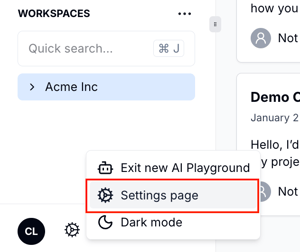
Each organization in Hatch has one list of dispositions, for both human and AI conversations.
Managers in Hatch can go to the organization's settings page to add and manage dispositions
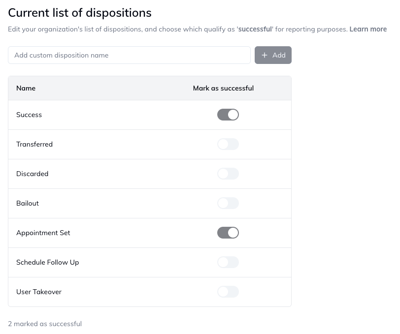
From the dispositions settings page, a manager can:
- Add a new disposition
- Delete an existing disposition
- Determine which dispositions should be marked as 'successful' for reporting purposes
When does a 'conversation' start?
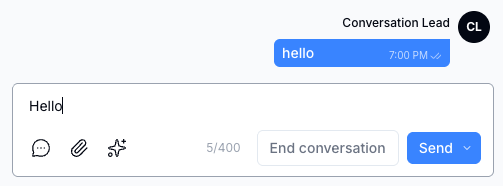 For human users, as soon as an outbound message (SMS, email, Yelp) is sent by a user, the 'end conversation' button will appear in the messaging box.
For AI agents, a text conversation starts as soon as an inbound message is received in response to an outbound campaign to which the agent is assigned.
What happens when a user ends a conversation?
If you're finished with a text conversation with a contact, you can hit the 'End conversation' button to close it out—this will take the contact card off the salesboard. If you want to hand off to another user, or keep the contact on the salesboard, you can move the card to a new column, or assign it to another user (see Contact Card Basics)
Now that the conversation is complete, the user will see the following modal, where they can add a disposition to the conversation: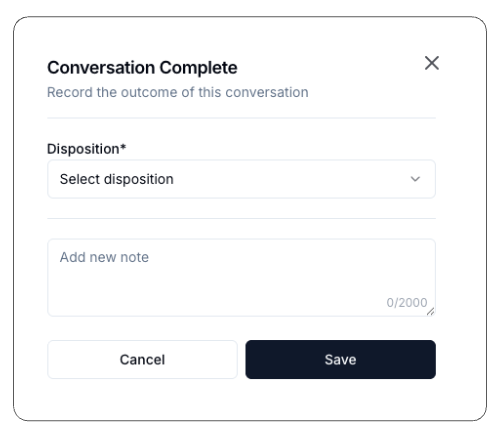
By default, the following dispositions will appear in this drop-down:
- Success
- Appointment set
- Discarded
- Transferred
- Schedule follow-up
How can I keep track of all the conversation records?
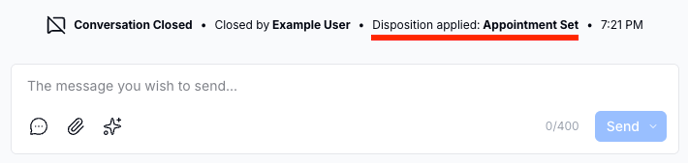
Currently, we store a record in the contact history that a given disposition was applied before for both human and AI agent conversations, so when users revisit the contact, a record will be displayed.
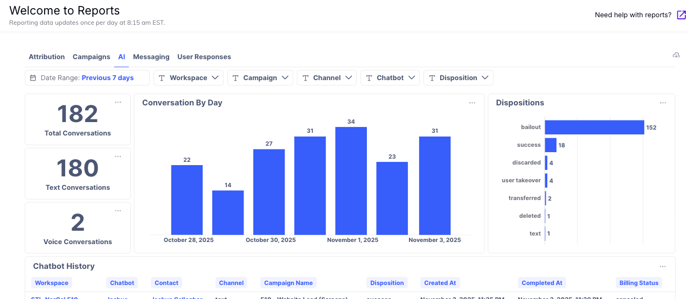
On the reporting tab, you can also keep track of the results of AI conversations and their associated dispositions, and we're currently working on adding the results of human conversations to reporting as well.
In the near future, we'll have dedicated pages built into Hatch where you can keep track of new conversation records in real time—stay tuned!
Can I still add a new disposition from the AI playground?
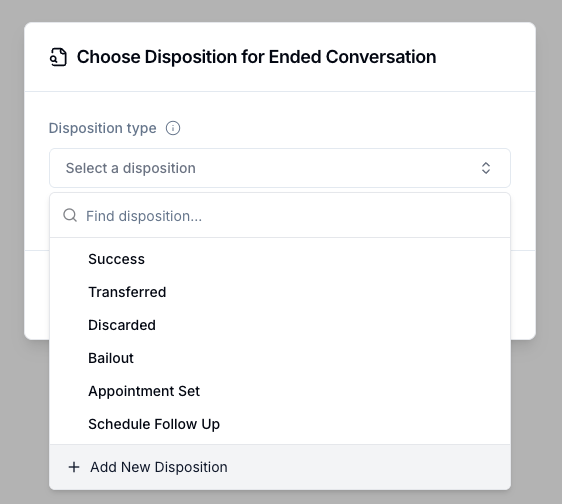
Yes! If you use the /end command in the playground, you can still add a new disposition from the drop-down list, and it will be stored on the same organization-level list as on the settings page.
What happens if I delete an existing disposition?
If you delete an existing disposition, it will no longer appear in the Conversation Complete modal when closing a conversation. AI Agents will continue to use that disposition if it’s assigned to an /End command within the Decision Tree. However, you’ll need to update the command before republishing the bot to ensure it reflects your changes.