![Hatch Logo White.png]](https://www.usehatchapp.com/hs-fs/hubfs/Logos/Hatch%20Logos/Hatch%20Logo%20White.png?height=40&name=Hatch%20Logo%20White.png)
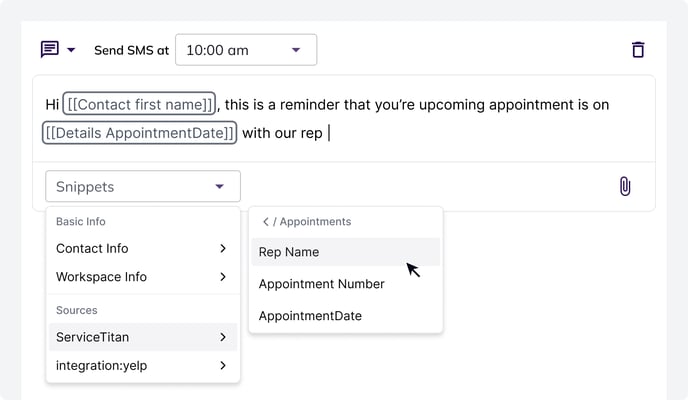
Table of Contents
Using Snippets
Snippets are a feature in Hatch that allow you to dynamically insert information into your campaign messages to make them more personalized, like:
- Contact First Name
- User First Name
- Details Company Name
- Appointment Date
- Address
- And more
When creating a campaign, the Snippet dropdown allows you to view all of the Snippets available from your sources, and insert them into your message.
How Snippets are Populated
Snippets are formatted differently depending on the field you are targeting.
Updated May 2025: We updated the formatting of snippets to include the name of the source. Any snippets added to campaigns prior to this change are formatted as [[ Details field_name ]], and populate from the latest opportunity.
- Contact Information: Snippets that pull Contact-Information, like the contact's First Name, begin with
Contact - User Information (your information): Snippets that pull User-Information, like your First Name, begin with
User - Opportunity Information: Snippets that pull Opportunity-Information, such as the information from an Integration or CSV Import, begin with
Detailsand include theSource_Name
When you choose a snippet from the dropdown with Opportunity Information, it will be formatted to include the Source Name in quotes. For example, a snippet to pull in Appointment Date from Service Titan will be formatted as [[Details "Service-Titan" AppointmentDate]]
.jpg?width=688&height=307&name=Snippets%20(1).jpg)
Opportunity-Information is populated from the most recent opportunity from that source. In the example above, the [[Details "Service-Titan" AppointmentDate]] will always populate from the most recent Opportunity from Service Titan.
For cases where you want to be even more specific in targeting, you can specify the model of the Opportunity you want to pull from. Some integrations provide different types of opportunities (Like Service Titan, which offers Calls, Jobs, and Membership Opportunities). If you want to ensure that a Snippet pulls from the most recent Opportunity from a certain source and a specific model, you can include the model in quotes after the source. Example: [[Details "Service-Titan" "Job" AppointmentDate]].
Contacts that don't have a value for a Snippet
Sometimes, the Contact receiving the message does not have information to populate the Snippet you’re using.
For example:
- You have a Campaign Message that references the Contact’s
Appointment Date, and a Contact with noAppointment Dateenters that Campaign - You have a Campaign Message that references the Contact’s
First Name, and that Contact’s information is accidentally missing from their record
When this happens, Hatch will not send the message, because you don’t want a customer getting a message that says “Hi [[Contact First Name]]! “. However, you can improve message deliverability using Snippet Fallbacks.
(As an aside, this is why we highly recommend creating audiences that require a value for each field you use as a snippet—more on that below)
Snippet Fallbacks
Currently Snippet Fallbacks are only available for the [[Contact First Name]] Snippet
Snippet Fallbacks improve the verbiage and deliverability of messages when certain dynamic information is missing from that message. Read on to understand what that means and how to use this feature.
What are Snippet Fallbacks?
With Snippet Fallbacks, you can configure certain Snippets to change behavior if the information it’s looking to reference in a message is missing. In particular, it can:
- Become blank
- Swap in a Fallback Value
This allows for messages to still be sent - and make sense to your recipient - even when that message is missing a value. Note that you’ll still have the option to not send the message.
Here’s what that looks like in the Campaign Builder:
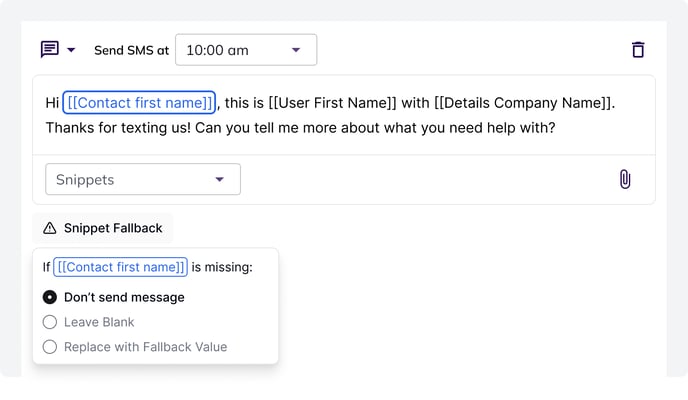
How to use Snippet Fallbacks
Let's say you have a Campaign Message that says:
Hi [[Contact first name]], this is [[User First Name]] with [[Details Company Name]]. Thanks for texting us! Can you tell me more about what you need help with?
If the Contact has a value for First Name, the message would be formatted as:
Hi Tim, this is Benji with Best Home Improvement. Thanks for texting us! Can you tell me more about what you need help with?
If the Contact does not have a value for First Name, you can use Snippet Fallback Logic to handle this message in the following ways:
| Snippet Fallback Setting | Message |
| Don't Send Message (Default) | The message will not be sent |
| Leave Blank | Hi, this is Benji with Best Home Improvement. Thanks for texting us! Can you tell me more about what you need help with? |
| Fallback Value [ "there" ] | Hi there, this is Benji with Best Home Improvement. Thanks for texting us! Can you tell me more about what you need help with? |
Frequently Asked Questions
Why would First Name be missing for some of my Contacts?
Certain lead sources only provide contact information like Phone Number and Email to contact a lead, and don't provide a Name.
What about Fallbacks for Other Snippets?
Today we only offer Fallbacks for the [[Contact First Name]] Snippet because it's the easiest and most logical snippet to write around. It would be challenging to write a message that can account for leaving a snippet like "Estimate Amount" blank, or fallback to a default value. But we are excited to find new ways to use this feature! If you have an idea, reach out to support@usehatchapp.com.